How to Pay PhilHealth Online in 2026 (GCash, Maya, BDO, BPI & More)
Paying PhilHealth used to mean a long line and a trip across town — now you can do it in under five minutes from your phone. Pick your payment method below and follow the steps that apply to you.
Paying PhilHealth Contributions used to mean lining up at a branch or payment center. These days, you can settle your monthly premium without leaving your house — through GCash, Maya, your online banking app, or a credit or debit card. The process takes just a few minutes once you know which method to use and what details to prepare.
This guide walks you through every available online payment channel, explains the 2026 contribution rates, and covers specific instructions for voluntary members, OFWs, self-employed individuals, and employers.
Can You Pay PhilHealth Contributions Online?
Yes. PhilHealth accepts online premium payments through its Member Portal and through multiple third-party payment platforms. You do not need to go to a PhilHealth Local Health Insurance Office (LHIO) or a payment center to settle your contributions. As long as you have your PhilHealth Identification Number (PIN) and a valid payment method, you can do everything digitally.
What You Need Before Paying PhilHealth Online
Before you start, make sure you have the following ready:
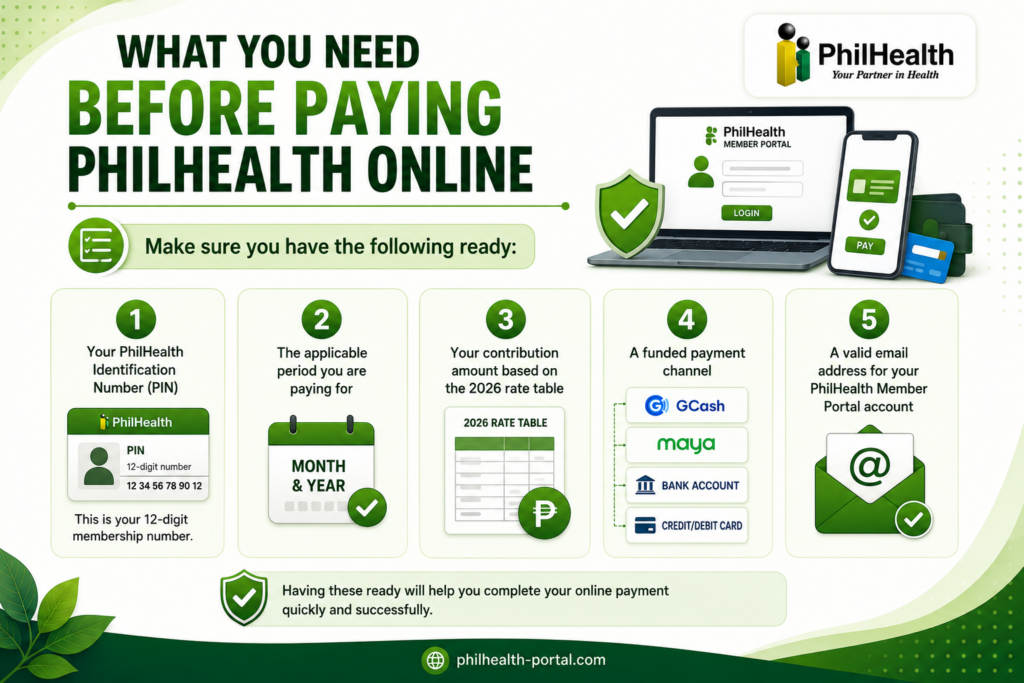
Missing your PIN is the most common reason payments get delayed. Check your PhilHealth ID, your MDR, or log into the Member Portal at eGovPH to retrieve it.
PhilHealth Contribution Rates in 2026
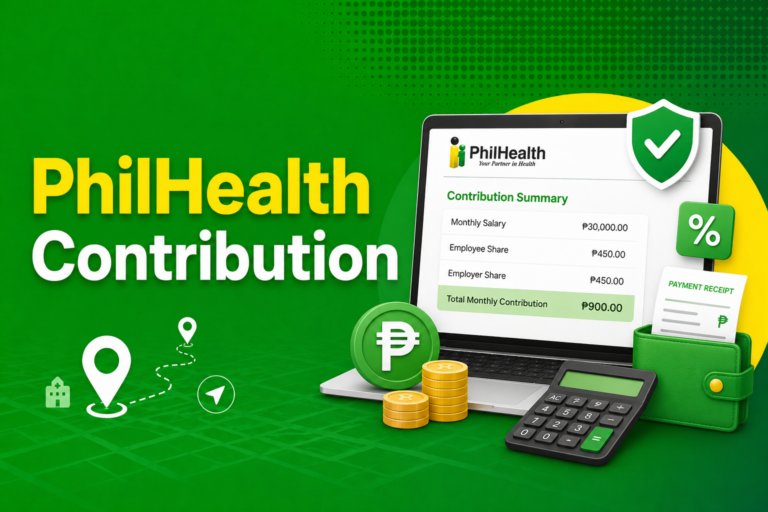
The amount you pay depends on your monthly income. PhilHealth uses a percentage-based system, and both the member and employer share the cost for employed members.
| Member Type | Contribution Rate | Monthly Income Basis |
|---|---|---|
| Employed (Employee Share) | 2.5% of basic salary | Shared with employer |
| Employed (Employer Share) | 2.5% of basic salary | Shared with employee |
| Self-employed / Voluntary | 5% of declared monthly income | Member pays full amount |
| OFW (Land-based) | 5% of declared income | Minimum applies |
| Indigent / Senior Citizen | Subsidized by government | N/A |
The minimum monthly contribution for voluntary and self-employed members in 2026 is based on the income floor set by PhilHealth. Always verify the current floor and ceiling on the official PhilHealth website before paying.
How to Create a PhilHealth Member Portal Account
If you have never logged into the PhilHealth online portal before, you need to register first. This is a one-time setup.
- Go to the official PhilHealth Member Portal at members.philhealth.gov.ph
- Click Register and enter your 12-digit PhilHealth PIN
- Fill in your personal details — name, date of birth, registered address
- Create a password and provide a valid email address
- Check your email for a verification link and click it to activate your account
- Log in using your credentials
Once your account is active, you can generate your Statement of Premium Account (SPA), view your contribution history, and access other member services.
How to Pay PhilHealth Online: Step-by-Step (Member Portal)
The most straightforward way to pay is through the PhilHealth Member Portal itself. This method works for voluntary members, self-employed individuals, and OFWs.
- Log in to your PhilHealth Member Portal account
- Go to Premium Contributions and select Generate SPA
- Choose the applicable period (month and year you are paying for)
- Review the contribution amount and confirm your details
- Click Proceed to Payment and choose your preferred payment method
- Complete the payment through your selected channel
- Save or screenshot your official receipt or transaction confirmation
Always generate your SPA before paying. Paying without a valid SPA can result in your contribution not being posted correctly to your account.
How to Pay PhilHealth Online Using GCash
GCash is one of the most popular payment methods for PhilHealth contributions in the Philippines. The process is quick and the payment usually posts within one to three banking days.
- Open the GCash app on your phone
- Tap Pay Bills from the main menu
- Search for PhilHealth under the Government category
- Enter your 12-digit PhilHealth PIN and the applicable period
- Enter the contribution amount
- Confirm the payment details and tap Pay
- Save the GCash transaction receipt for your records
Make sure your GCash account is fully verified (KYC complete) before attempting to pay. Unverified accounts have transaction limits that may block the payment.
How to Pay PhilHealth Online Using Maya
Maya (formerly PayMaya) also accepts PhilHealth premium payments directly through its app.
- Open the Maya app
- Tap Pay Bills
- Search for PhilHealth in the biller list
- Enter your PhilHealth PIN and the period you are covering
- Key in the contribution amount
- Review the details and confirm the payment
- Screenshot or save the confirmation receipt
Maya payments typically reflect in your PhilHealth account within one to three banking days, similar to GCash.
How to Pay PhilHealth Online Using a Credit or Debit Card
PhilHealth accepts Visa and Mastercard credit and debit cards through its Member Portal payment gateway. This option is convenient for members who prefer not to use e-wallets.
- Log in to the PhilHealth Member Portal and generate your SPA
- Select Credit/Debit Card as your payment method
- Enter your card number, expiry date, and CVV
- Complete the 3D Secure verification sent to your registered mobile number
- Wait for the confirmation screen and save your receipt
Not all cards work smoothly the first time. If your card is declined, check with your bank whether online government payments are enabled for your account.
How to Pay PhilHealth Online Through Banks
Several major Philippine banks allow PhilHealth contribution payments through their online banking platforms. Below are the most commonly used:
| Bank | Platform | Notes |
|---|---|---|
| BDO | BDO Online Banking / BDO Pay | Under Bills Payment → PhilHealth |
| BPI | BPI Online / BPI Express Online | Under Government → PhilHealth |
| Metrobank | Metrobank Online | Under Pay Bills → PhilHealth |
| Land Bank | iAccess / LBP Mobile | Under Government Payments |
| PNB | PNB Digital Banking | Under Bills Payment |
| Security Bank | Security Bank Online | Under Pay Bills |
The general process across all banks is the same: log in to your online banking account, go to Bills Payment, search for PhilHealth, enter your PIN and the payment period, enter the amount, and confirm. Always keep the reference number from the bank as proof of payment.
How OFWs Can Pay PhilHealth Online
OFWs based abroad have two main options for paying PhilHealth contributions online. The first is through the PhilHealth Member Portal using an international credit or debit card — Visa and Mastercard are both accepted. The second option is to authorize a family member in the Philippines to pay on your behalf through GCash, Maya, or any bank online platform.
If you are paying from abroad, make sure your declared monthly income and contribution amount are correct before generating your SPA. OFW rates follow the same percentage-based system, and underpayment can affect your benefit eligibility. For members who want a family member to handle payments, an authorization letter for PhilHealth may be needed when dealing with the LHIO directly. [Internal Link Opportunity: PhilHealth Authorization Letter Guide]
How Employers Can Pay PhilHealth Contributions Online
Employers do not use the Member Portal for remittances. They use the Electronic Premium Remittance System (EPRS), which is PhilHealth’s dedicated employer payment platform.
- Log in to the EPRS at eprs.philhealth.gov.ph using your employer account credentials
- Upload your Electronic Report of Employees (RF-1) or use the system’s employee list
- Review the premium computation for all covered employees
- Generate the payment reference and choose your payment channel (participating banks or payment centers)
- Complete the payment and upload your proof of remittance
- Download the employer’s official acknowledgment receipt
Employers who fail to remit on time face penalties and surcharges, so setting up a regular payment schedule through EPRS is strongly recommended.
How to Check Your PhilHealth Contributions After Paying
After making a payment, do not assume it has been posted automatically. Verification is important, especially before hospitalization or benefit claims.
- Log in to the PhilHealth Member Portal
- Go to Contributions or Premium Contributions History
- Check if the months you paid for now appear as posted
If the payment does not appear after three to five banking days, gather your proof of payment (GCash receipt, bank reference number, or card statement) and contact PhilHealth through their hotline at 8441-7444 or visit the nearest LHIO.
Common Problems When Paying PhilHealth Online
Payment not posted after several days. This happens when the wrong PIN is entered or the biller reference was incomplete. Always double-check your 12-digit PIN before confirming any payment. Keep your receipt and follow up with PhilHealth if it does not appear within five banking days.
SPA generation fails on the portal. This is usually a browser issue or a portal maintenance window. Try clearing your browser cache, switching browsers, or accessing the portal during off-peak hours (early morning works best).
GCash or Maya shows PhilHealth biller as unavailable. Temporarily, some billers go offline for system updates. Wait a few hours and try again. You can also switch to bank online payment as a backup.
Wrong payment period entered. If you paid for the wrong month, contact PhilHealth directly with your receipt. Do not simply make another payment — the duplicate may cause confusion in your contribution records.
Debit card payment declined. Some banks block online government payments by default. Call your bank’s hotline and request that online bill payments be enabled for your account.
Tips for a Safe and Hassle-Free Payment
Always use the official PhilHealth website and verified apps only. Scammers sometimes create fake PhilHealth payment pages, particularly on social media. Bookmark the official Member Portal URL and never enter your PIN on an unfamiliar site.
Pay a few days before the deadline — do not wait until the last day of the month. Payment systems sometimes experience high traffic at month-end, and a failed transaction close to the deadline can result in a late posting. Contribution deadlines for voluntary members are generally at the end of the applicable month.
Keep all your receipts in one place. A simple folder in your email or a photo album on your phone dedicated to PhilHealth receipts can save you a lot of trouble if you ever need to dispute a missed posting.
Frequently Asked Questions
How do I pay PhilHealth online if I am a voluntary member?
Voluntary members can pay through the PhilHealth Member Portal by generating an SPA first, then choosing GCash, Maya, a credit/debit card, or online banking as the payment method. You pay the full 5% contribution yourself since there is no employer sharing the cost.
How long does PhilHealth online payment take to reflect?
Most online payments post within one to three banking days. GCash and Maya payments tend to reflect faster, while bank transfers may take up to three banking days. If your payment has not appeared after five banking days, contact PhilHealth with your proof of payment.
Can I pay PhilHealth online using BDO?
Yes. Log in to BDO Online Banking, go to Bills Payment, search for PhilHealth, enter your PIN and payment period, key in the contribution amount, and confirm. Keep the BDO reference number as proof.
Is GCash accepted for PhilHealth payments?
Yes. GCash is one of the most widely used methods for paying PhilHealth contributions online. Go to Pay Bills in your GCash app, find PhilHealth under Government billers, and follow the prompts.
Can OFWs pay PhilHealth online from abroad?
Yes. OFWs can use an international Visa or Mastercard through the PhilHealth Member Portal. Alternatively, they can authorize a family member in the Philippines to pay on their behalf through GCash, Maya, or bank online payment.
What happens if I pay PhilHealth online without generating an SPA?
Payments made without a valid Statement of Premium Account may not be properly attributed to your record. Always generate your SPA through the Member Portal before proceeding with any online payment.
How do I pay PhilHealth online for a self-employed or freelance worker?
Self-employed and freelance members follow the same process as voluntary members. Log in to the Member Portal, generate your SPA with your declared monthly income as the basis, and pay through any accepted online channel.
Can employers pay PhilHealth contributions online?
Yes. Employers use the Electronic Premium Remittance System (EPRS) to file and remit contributions for all their employees online. This is separate from the Member Portal used by individual members.